
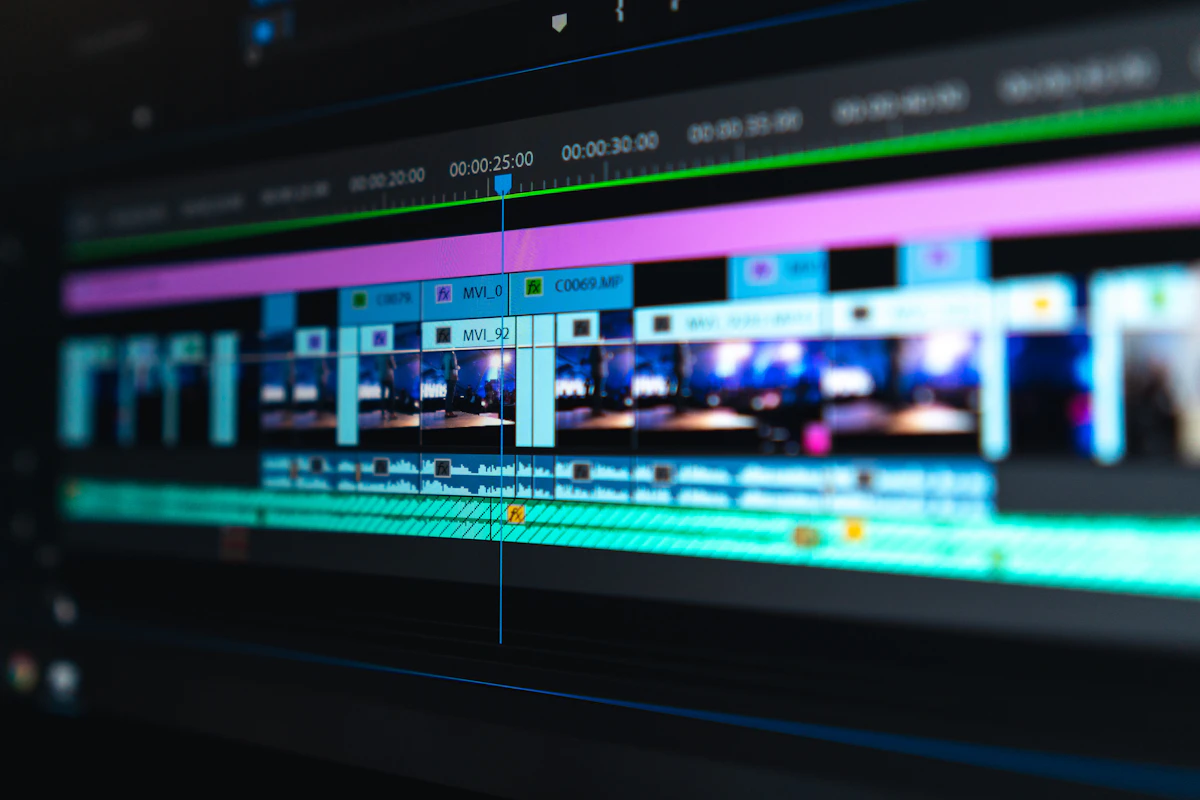
Best Free Video Editing Software for Beginners
A decade ago, breaking into video editing required paying hundreds of dollars for proprietary software licenses or settling for clunky free utilities that slapped hideous watermarks across your finished exports.
Today, the creative software landscape has undergone a democratic revolution. Whether your goal is assembling 60-second vertical TikTok reels, launching a 4K YouTube tech channel, or editing your first independent short film, remarkably powerful, completely free video editing tools are readily available.
However, not all free software suits every workflow. Some excel at automated viral social templates, while others provide Oscar-winning color grading engines that can overwhelm first-time creators.
In this guide, we evaluate the best free video editors for beginners across timeline usability, GPU acceleration, feature sets, and export constraints.
The Premier Free Video Editors Compared
| Video Editor | License Type | Watermark? | Ideal Content Style | Learning Curve | GPU Acceleration |
|---|---|---|---|---|---|
| DaVinci Resolve | Free (Feature-Rich) | Zero Watermark | Long-form YouTube, cinema, documentaries | Steep (Professional NLE) | Exceptional (Multi-threaded) |
| CapCut Desktop | Freemium | Zero on Free Export | TikTok, Instagram Reels, YouTube Shorts | Gentle (Beginner-Friendly) | Very Good (Smooth playback) |
| Shotcut | 100% Open Source | Zero Watermark | General video editing, educational projects | Moderate | Good |
| OpenShot | 100% Open Source | Zero Watermark | Basic clip trimming, home family videos | Very Gentle | Basic |

1. DaVinci Resolve: The Hollywood Titan
Blackmagic Design’s DaVinci Resolve is widely considered the most generous free software release in the entire history of digital media creation. The free version is not a crippled trial; it is a full-featured, professional Non-Linear Editor (NLE) utilized on major television broadcasts and Hollywood feature films.
Why It Is Extraordinary:
- All-in-One Architecture: Contains five distinct workspaces within a single application: Cut (rapid assembly), Edit (traditional multi-track timeline), Fusion (node-based visual effects and motion graphics), Color (the undisputed industry gold standard for color grading), and Fairlight (full DAW digital audio workstation).
- No Watermarks or Time Limits: Export up to 4K Ultra HD at 60 FPS in H.264, H.265, or Apple ProRes with zero branding overlays.
- Hardware Optimization: Leverages Apple Silicon Metal APIs and modern NVIDIA/AMD GPU acceleration for butter-smooth timeline scrubbing.
The Trade-Off:
The learning curve is formidable. Beginners must be prepared to watch structured YouTube tutorials to grasp node-based color grading and project database management.
2. CapCut Desktop: The Social Media Powerhouse
For creators focused on short-form vertical video (TikTok, Instagram Reels, YouTube Shorts), traditional NLEs can feel unnecessarily slow. CapCut Desktop (by ByteDance) streamlines viral video production into an art form.
Standout Features:
- Auto-Captions in Seconds: Uses AI speech recognition to generate animated, dynamic text subtitles that bounce on screen in sync with your voice—a staple of modern viral storytelling.
- Pre-Built Effects and Transitions: Thousands of royalty-free sound effects, kinetic zooms, split-screen layouts, and text presets ready to drag and drop.
- Background Removal: Automated green-screen and human rotoscoping cutout tools that work without manual masking.
The Catch:
While basic exports are watermark-free, certain premium AI features and filters are gated behind a “CapCut Pro” monthly subscription.

3. Shotcut: The Reliable Open-Source Alternative
If you value digital privacy and dislike creating corporate user accounts simply to edit a video, Shotcut is an exceptional open-source choice.
Highlights:
- Wide Format Support: Backed by the robust FFmpeg media framework, Shotcut can open and edit virtually any obscure video or audio codec without preliminary transcoding.
- Lightweight System Footprint: Runs comfortably on modest laptops with integrated graphics where DaVinci Resolve would refuse to launch.
- Pure Open Source: Zero tracking, zero upsells, zero telemetry.
Which Video Editor Should You Download?
- If your goal is learning professional filmmaking or building a serious YouTube channel: Download DaVinci Resolve. Investing two weeks to learn its interface will pay dividends for the rest of your creative career.
- If you create daily vertical content for social media: Use CapCut Desktop. Its automated captioning and template library will cut your editing turnaround time by 75%.
- If you have an older, low-spec laptop and just want to trim family clips: Choose Shotcut or OpenShot.


